File I/O
opens a blank tab. offers three starting points instead of a blank canvas: Blank (an empty canvas, same as File → New), Die frame + alignment marks (a die frame with corner alignment marks already placed), and Microfluidics starter layers (Flow / Control / Vent layers instead of the default Layer 1/2/3). The same three cards also appear on the Welcome panel shown on your first visit.
 View full image
Opening files
— Pick a
.gds,.svg,.dxf,.dwg,.cif,.oas/.oasis, or raster image (.png/.jpg/.webp/.bmp/.gif).AutoCAD
.dwgis read natively for every release from R14 to R2018 — no conversion step and no AutoCAD needed; the import dialog asks what one drawing unit means (preset from the file's own$INSUNITSwhere that can be verified), shows the resulting drawing size next to each choice when the header's extents could be read, marks any choice a GDS file couldn't hold — either because the drawing itself is too large, or because it sits too far from the origin even though it would fit once moved there (a GDS coordinate's limit is its distance from the origin, not the drawing's size) — and states that consequence, with the matching fix (rescale, or move to the origin), next to the Import button for whichever choice is highlighted (Import stays enabled either way — you can rescale or move afterwards, or export a different format), and offers Close open contours.Geometry drawn in a paper-space layout (a title block or note on a plot sheet, rather than in the drawing itself) is not imported — Glyph reads model space only — and the import says how many such entities it skipped. A
.dwgDIMENSIONdraws from its own anonymous picture block, the same as DXF's; one whose picture is missing from the file is counted and reported rather than silently dropped..dxfopens either the ASCII or the binary DXF variant with no extra step — Glyph sniffs the file's bytes to tell them apart, so there's nothing to re-save first..dxbis a different format (not the same as binary DXF) and isn't supported; export DXF from your CAD tool instead. SVG import reads curves, arcs, circles, ellipses, lines and text as real geometry, and asks how (see below).The file type is detected by extension (or, for DXF, by sniffing the bytes) and routed to the appropriate importer — and if a file's extension is missing or wrong (a CIF/SVG/OASIS file saved with the wrong suffix, say), Glyph also looks at the actual bytes as a fallback before giving up. Gzip-compressed files open transparently: a
.gds.gz,.dxf.gz, or any gzip stream regardless of name, is decompressed on the way in (up to 50 MB decompressed) and then routed exactly as if it had arrived uncompressed.GDS parsing runs in a Web Worker — the UI stays responsive while large files (50 MB+) load. Browsers without module-worker support fall back to synchronous parsing on the main thread.
A truncated or otherwise damaged file — GDS, CIF or DXF alike — no longer opens silently: Glyph salvages whatever geometry it can read, but shows a warning naming what was missing or skipped, and disables save-in-place for that tab —
Ctrl+Sfalls through to Save as… so the salvaged partial can never overwrite your original file.(A truncated OASIS file is the one exception: the format has no partial-read mode, so a cut-short
.oasfails to open at all rather than opening as a partial.) A separate, amber Partial import badge appears in the status bar when a DWG/DXF/SVG/CIF import read an otherwise-intact file but skipped part of what it holds — undecoded entity types, unresolved block placements, a paper-space layout, an over-budget SVG construct, an unexpanded recursive CIF symbol — even when nothing about the file itself was broken; click it to reopen the list of what was skipped.This is distinct from the salvage warning above: Partial import never disables save-in-place or the BEAM push, and never appears alongside the damaged-file badge for the same open (the damaged badge already says parts may be missing).
A further, separate notice fires right after a DXF/DWG/SVG/CIF/OASIS open — the formats with no 32-bit coordinate ceiling of their own — when the drawing's REAL geometry (not just the units dialog's size preview, which reads the file's own header and can understate it) turns out to sit past what a GDS file can hold at this precision: a toast with a Details button names the real extent, the limit, and the ways out (re-import at a smaller unit, except for an OASIS file, which states its own unit; or move/scale the design from Properties → Transform), and states that CIF/DXF/SVG export are unaffected — only a later GDS save is limited this way.
A GDS open never shows it, since a GDS file cannot hold a coordinate past that limit. Opening a file — from File → Open…, the recent-files list, or by dropping it on the window — asks first if the current tab has unsaved changes: Open in a new tab (keeps the current document and its undo history), Replace this document (discards both), or Cancel.
A tab saved to a file, or empty, opens straight into the current tab with no prompt; a tab whose only save was a download (your browser has no file to write back to) still asks, and says so. With Confirm before destructive actions turned off in Settings the question is skipped and the file replaces the current document, as before.
Drag-and-drop — Drag any of the file types above directly onto the Glyph window. A "Drop to open" overlay confirms the drop; from there the import flow is identical to File → Open, including the unsaved-changes question above. While a dialog is open a drop is refused — the overlay reads "Close the dialog first" and nothing opens underneath the dialog.
— Reopen a recently opened or saved file without walking the picker. Chrome/Edge only (it needs the File System Access API); your browser will ask once per file to re-grant access. If a file has been moved or deleted, its entry is dropped from the list. Each row is two lines: the filename, then how long ago you opened it and how big it is — so two
mask.gdsfrom different folders are still tellable apart.(The browser gives a file handle no folder or path, so size is the strongest hint available.) Hover a row and click the × to forget just that entry. Only the filename, a timestamp, a size, and an opaque file reference are stored — never file contents. Clear recent empties the list.
Saving
(
Ctrl+S) — Write straight back to the file this tab was opened from (or last saved to). A tab with unsaved edits shows an orange dot next to its name. If the tab isn't bound to a file yet — a new document, a drag-dropped file, an.svg/.dxf/.cifimport, or a browser without the File System Access API — Save still writes a GDS: the save dialog suggests<name>.gds(a browser with no save picker downloads it), so it never silently does nothing and never quietly writes the imported format back.Another format is Save as…'s choice, and a save in another format says it exported a copy and that the document is still unsaved. Only
.gds/.gdsiibind: Glyph won't overwrite a.dxfwith GDS bytes.A save that fails (most commonly a design too large for GDS's coordinate limit, e.g. after importing a DWG/DXF at too coarse a unit) stays on screen until you dismiss it, names what's too big — or, for a small design parked far from the origin, how far out it sits — and how large a GDS file can hold at the document's precision, and offers a Details button with the full numbers and two ways out (re-import at a smaller unit, or scale the design down — or move it toward the origin — via Properties → Transform) — reachable from the Results panel's "View report" even after the toast is gone.
(
Ctrl+Shift+S) — One save dialog for every format Glyph can write — GDS, SVG, PNG, DXF, CIF, EPS, OASIS — the extension you pick decides the output. Uses the File System Access API where available (Chrome/Edge); browsers without it show a small format chooser instead (GDS first; Enter picks it) and download the file you pick. For GDS: bitmaps, construction shapes, andletterSpacingare not part of the GDS spec and are dropped on save; text shapes are written as TEXT records (flatten first if you need the glyphs as boundaries).GDSII has no record for layer names, layer colours or field tone either: saving a file you opened as CIF, DXF, DWG, SVG or OASIS to GDS says so in the "Saved as …" message when it has any of them to lose ("— GDS keeps no layer names, colours or field tone"), and the message's Details report lists the layers that will come back in a different colour and points you to Save layer setup… (), which keeps names and colours in a file alongside.
GDSII also records a layer only through the shapes on it, so a layer row with no shapes is not in the file; when there are any, Details names them. Details (titled "Saved file details") lists what the file does not keep first and the file's SHA-256 checksum last. The toolbar Save button saves in place.
— Write every tab that has unsaved changes, in one go. Tabs already bound to a file are written straight back; an unbound tab opens the usual save picker so nothing is written to a place you did not choose. One summary toast reports how many were saved, skipped (you cancelled a picker), or failed; a notice a tab's save raises (such as an array written as separate references) is shown once each when the run ends. Greyed out when no tab has unsaved changes. Glyph briefly switches through the dirty tabs while saving and returns you to the one you started on — only the active tab holds a live document.
Exporting
— Export the document as a flattened SVG snapshot — SREF/AREF expanded, hidden layers, construction shapes, and bitmaps excluded. Layer colour and opacity carry over; text is emitted as SVG text in a monospace font (flatten to boundaries first if you need exact glyph outlines).
— Snapshot the canvas as you currently see it and write it to a PNG file. Resolution matches the on-screen device-pixel size; the dark panel background is composited under the layers so the file is not transparent.
— Write AutoCAD R2000 DXF — see "DXF export" above (Arrange) for what's written and what's lossy. In short: each layer carries its exact colour as a true-colour value (group 420) beside the nearest AutoCAD Color Index entry, so a Glyph → DXF → Glyph trip keeps the exact hex; an axis-aligned rectangular AREF becomes a native arrayed
INSERT, and text collapses to a plainTEXTentity with no font/alignment. Construction shapes, bitmaps and dimensions are excluded, as in every export.— Publication-quality output: white background, solid fills, a 1px outline on every polygon, a layer legend (only layers that actually carry geometry), a scale bar, and a title stamp — each individually togglable. Give the PNG size either in pixels or as a physical width in mm at a chosen dpi (with 1-, 1.5- and 2-column journal presets); the dialog shows the resulting pixel and millimetre dimensions live. An Annotation options section sets an exact scale-bar length, the fill opacity, and the background colour.
Choose the Area — whole design, current view, or just your selection — so you can publish one device without cropping afterwards. A live preview at the top of the dialog shows exactly what will be written (including the crop) and updates as you change the options, so you can check legend overlap or the scale bar without exporting and reopening.
(On very large designs — above ~20 000 shapes — the preview is skipped to keep the dialog responsive; the export itself is unaffected.) A Format choice (SVG, PNG or EPS) sets the file Export… writes — in a browser with no save picker (Safari, Firefox) that is the file you get; with a picker you can still change it there. The legend sits in a column to the right of the design and the scale bar and title stamp in a strip below it, so none of them covers your geometry.
Unlike Export PNG, the figure PNG is rendered off-screen over the whole design at a width you choose, so it does not depend on your window size or current zoom. Construction shapes and bitmaps are excluded, as in every export. A very large array (AREF) now exports as its true footprint — a hairline outline at the array's real extent, plus a bounded sample of real instances so the pitch and orientation stay legible — instead of just the four corner instances shown before.
— Each layer is one physical chrome mask. Writes a separate
.gdsper layer (the full cell hierarchy filtered to that layer's geometry, all its datatypes), named{base}_L{n}[_DF/_CF].gds, so a mask shop receives each plate as its own proofable artifact. Download one layer at a time or "Download all", which also closes the dialog.— Write the active cell — whichever one you're editing, not necessarily the document's top cell — and everything it references (SRef/ARef, transitively) as its OWN, separate document, leaving unrelated sibling cells behind. The default filename comes from the cell's own name (e.g. editing
waveguidesuggestswaveguide.gds).Goes through the same save dialog as every other export, so any writable format works (
.gds,.svg,.dxf, …), and it's a pure export — it never touches this tab's own file binding, so your nextCtrl+Shere still writes the whole original document, not the fragment you just exported.— Write the port↔port connectivity graph (component instances, ports, and how connectors join them) as JSON — see Instances: SREF and AREF's Connect ports section above for the full description. Glyph does no simulation itself; this is a hand-off format for MINT/Fluigi-class tools.
Layer setup
— Save just the layer palette (id, name, color, visibility, lock, stipple, opacity, field tone) to a
.jsonfile. "Load" replaces the current document's layers atomically (one undo step). If loading would rename a(layer, datatype)pair that still holds geometry in your drawing, Glyph asks first, naming every affected pair, its old and new name, and how many shapes ride on it. Use this to pin a house style across documents.— Load a foundry / PDK layer table — a CSV (
name,layer,datatype,color,stipple, header auto-detected) or a KLayout.lyp— so an opened GDS comes up with named layers (M1 / VIA / POLY), house colours, the right(layer, datatype)pairs, and KLayout stipple patterns.A
.lypsaved with layer groups is read the way KLayout reads it — every grouped layer arrives, and a colour or pattern set on a group applies to its members — and KLayout's fill/frame brightness is applied to the colour, so a layer looks as it does in KLayout. Layers referenced by existing geometry but absent from the map are preserved as stubs so nothing vanishes. Same confirm-before-rename as "Load layer setup" above when the map would rename a pair that already carries geometry. One undo step.— Write the current layer palette (name, colour, fill, visibility) back out as a KLayout layer-properties (
.lyp) file — the write side of Import foundry layer map above, for handing your house style to KLayout or another.lyp-reading tool.— Same palette, written as the CSV layer map (
name,layer,datatype,color,stipple) that Import foundry layer map also reads — round-trips with no header sniffing needed.
Setup
- — Settings… (Settings), Keyboard shortcuts… (remap any command, or switch to the KLayout keymap), Technology presets… (a named process bundle of layers, design rules and grid presets) and Manage fonts… (the fonts imported into this document). These lived at the end of the Edit menu in earlier versions. The command palette finds all four under "setup".
Document properties, statistics and autosave
— View and edit the document's GDS library name (LIBNAME on export) and database unit (DBU = precision). The DBU is the GDSII grid resolution; most tools/foundries expect 1 nm (0.001 µm), and a non-default value raises a warning since a mismatch silently rescales every coordinate on the recipient's import. Changing the DBU is non-destructive — your geometry's physical size is preserved.
A Mirror geometry on export checkbox flips the exported
.gdsabout the Y-axis (a back-side / wrong-reading mask for a dual-sided process) without redrawing — the on-screen geometry stays intact so the mask shop never double-mirrors. One undo step. (The "Advanced" section exposes the raw GDS user-unit value.)— A per-(layer, datatype) mask-list / statistics rollup across the whole document: name, field tone, exportable-shape count, and bounding extent — the table a reviewer checks against the foundry layer table before tape-out. Compute union area & density runs an opt-in polygon union (overlaps merged, so stacked fill isn't double-counted) and a % coverage over the design extent. Export CSV writes the whole table (raw nm/nm²).
Counts are over each cell's own drawn geometry (instances counted once; bitmaps & construction excluded).
— Open the autosave history dialog (see below).
Comparing and reviewing
File → Diff against another
.gds… — A tolerance-bands dialog opens first, asking for a comma/space-separated, ascending list of distances in µm (default0, remembered session-scoped from your last submission so a repeat diff doesn't reset it) — a region swallowed by erosion at a listed tolerance grades as noise instead of a real difference, with the borderline case (swallowed only by the largest tolerance) graded as a warning. Cancelling it aborts the diff outright.With another tab open, a Compare against choice lists every open tab beside a file on disk — so a design pulled from BEAM, or any unsaved tab, can be the comparison (a tab opened from a damaged file is refused, as a damaged file is). Pick a second GDS file and produce a per-layer diff report.
The full SREF/AREF hierarchy is flattened and every element kind (boundary, box, path, text) is compared, so a change living inside a referenced cell, a path-width edit, or a text-only change is reported — not missed as "Identical". Each layer/datatype row shows the XOR polygon count, XOR area, and the count of added / removed elements. Saved as
.txt. Enormous arrays are corner-sampled (the report notes when this happens).The differences are also published as markers (largest area first) you step through with
F2/Shift+F2, each zooming to that region's bounding box — only the 500 largest regions become markers (the report says so when it truncated); everything else stays visible only in the text report. Diff markers share the one marker list with DRC and CSV review markers (View navigation), so Glyph asks before replacing markers you already have.— Read a KLayout DRC report database (
.lyrdb) and publish its findings into the Results panel (Arrange) — review, waive and F2-step through a KLayout run inside Glyph instead of switching tools. Publishing asks first if you already have markers shown.
The parser/writer pair is tested to be byte-identical round-trip on the fixture set, so files written by Glyph are safe to re-open in KLayout, Clewin, or any standard GDS tool.
DXF import. Both ASCII and binary DXF files (AutoCAD and most mechanical/architectural CAD) import as editable geometry — Glyph detects which variant a .dxf file is and reads it directly, with no re-save step: LINE, LWPOLYLINE/POLYLINE (including bulge arcs), CIRCLE, ARC, ELLIPSE, SOLID/TRACE, 3DFACE, TEXT/MTEXT, SPLINE (flattened to polylines), HATCH (boundary outlines), REGION (planar, straight-edged boundaries — see below) and DIMENSION pictures. Curves are flattened with a chord-deviation budget. DXF's BLOCK/INSERT hierarchy is preserved — each block becomes a Glyph cell and each insert an SREF (or AREF for arrayed inserts). Some CAD exporters (notably SolidWorks / eDrawings) leave the real part geometry in anonymous blocks that are never formally INSERTed; Glyph surfaces any such un-referenced block by placing it at the origin so its geometry isn't silently lost (a strict reader would drop it). Drawing units follow the file's $INSUNITS header (e.g. millimetres → real-world size). A file that declares no unit ($INSUNITS 0 or missing — every R12 file, and many mechanical-CAD exports) asks what one drawing unit is, in the same dialog a DWG uses, with the drawing's size shown at each choice; closing it keeps the highlighted 1 unit = 1 µm. (The standalone converter cannot ask, so it reads such a file as 1 µm and says so.) The absolute scale is just a starting point — select all and rescale via the Properties panel if you need a different size. .dxb is a different format from binary DXF (a closed set of single-byte opcodes, no group codes at all) and is not supported — export DXF from your CAD tool instead. Imported layers default to hollow (outline-only) so the drawing reads as CAD line-art instead of opaque fills. Colours come from the AutoCAD Color Index: a layer's own colour for ByLayer entities, and per-entity colour overrides (e.g. a cyan region or green frame) are preserved by routing them onto separate colour-variant layers (0 · cyan, 0 · green, …). A layer whose table entry never actually customised its colour (still the generic AutoCAD default, ACI 7 — the common case for files exported by tools that don't bother setting layer colour) gets a distinct colour from the same default palette a GDS import uses instead of a flat white-on-white, so imported layers are visually tellable apart even when the source file never specified colours; a real per-layer ACI colour is always kept as-is. Switch any layer to solid/hatch in the Layers panel if you want filled regions. MTEXT paragraphs import as one label per line; AutoCAD's standard dimension-arrowhead blocks are not imported when nothing uses them and they hold only arrowhead-sized geometry on layer 0 (the import names each one it leaves out; a block of your own that happens to share such a name is kept); a palette colour too dark to see on the canvas is lightened (same hue); and the first layer the drawing actually uses becomes the active drawing layer. TEXT/MTEXT's AutoCAD %%d/%%c/%%p escape codes are converted to the real characters they stand for (°, Ø, ±); formatting codes with no plain-text equivalent (underline/overline/strike-through) are dropped from single-line TEXT but left as literal text inside MTEXT, matching how a real DXF reader treats the two entity types differently. Note: a character the built-in stroke font has no glyph for (e.g. CJK or Cyrillic script) renders as blank space rather than a substitute glyph — the imported string itself is kept exactly, so re-exporting as native GDS/CIF/DXF text is lossless, but on-screen and in a flattened or vector-only export (SVG/CIF/DXF/EPS text-to-outline, or ) that character contributes no ink; and dashed linetypes render solid. REGION entities (a mechanical-CAD boundary — a fixture, carrier or chuck outline) import their PLANAR, STRAIGHT-EDGED boundary as a filled shape, including holes; a curved or non-planar REGION face, or one using newer (R2013+) binary ACIS data, is skipped and counted rather than approximated — the notice says which and suggests re-exporting the shape as a closed polyline or hatch if it needs to import faithfully. See "DXF export" above (Arrange) for the write side, including the exact layer colour and the drawing unit it writes.
A layer listed in a DXF or DWG file's layer table that nothing is drawn on still appears in the Layers panel, as an empty row after the drawn ones, so the file's layer list comes through whole. An empty row does not survive a GDS save — GDSII has no layer record — so keep the layer list with if you need it.
SVG import. Curves and arcs (C/S/Q/T/A path commands) are flattened to polylines, not dropped — along with <circle>, <ellipse>, <line> and <text>. Opening a .svg shows an import options dialog first: Split colours into layers (distinct fill/stroke colours become distinct layers, up to 32; off puts everything on layer 1), Import text (<text> becomes Glyph text shapes; off skips it), Flip vertically (SVG is y-down, Glyph's world is y-up, so this lands the drawing the same way up as it looks in a browser or viewer — earlier versions of Glyph always imported mirrored), Curve smoothness (Fine/Normal/Coarse, trading vertex count for closeness to the true curve), and Close open contours & heal geometry (checked by default — see Arrange → Close open contours… above). The original GDS layer numbers don't round-trip through colour splitting, only the colours. Re-importing a file Glyph itself exported () recovers its geometry, text and colours. CSS styling is now understood: inline style="…" attributes and <style> rules (element-type, .class and #id selectors, including comma-separated lists) are read and applied in the correct cascade order, so files exported from Illustrator or Figma — which paint with classes rather than fill=/stroke= attributes — split into layers correctly instead of collapsing into one colour bucket. Elements hidden with display:none or visibility:hidden are skipped rather than imported as if visible. Selectors outside that subset (attribute selectors, descendant combinators, :pseudo-classes, …) are reported rather than silently mis-applied. Still not imported: embedded <image> bitmaps (use instead).
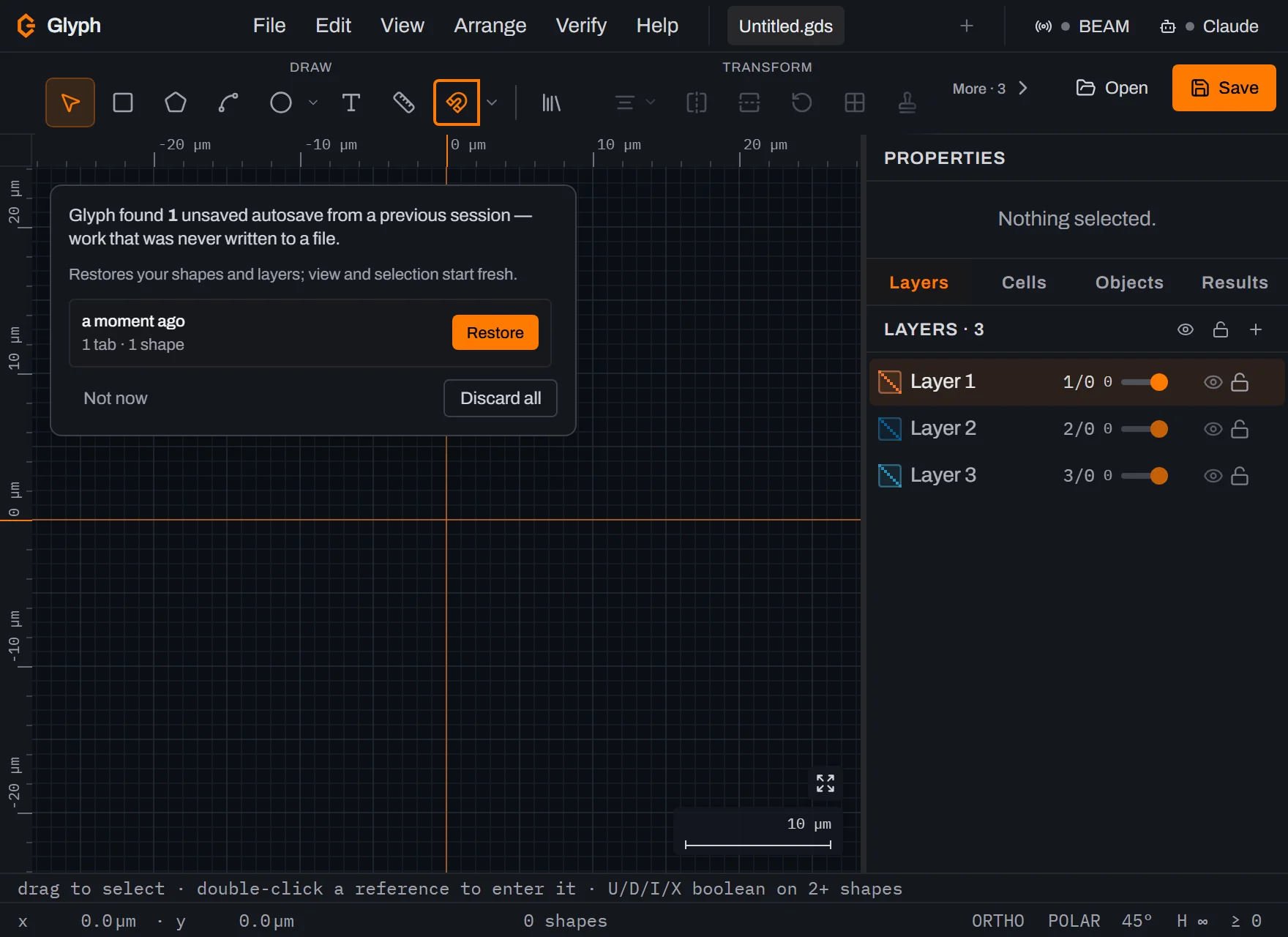
Autosave & restore points. Every open tab is debounced-saved to the browser's OPFS (Origin Private File System) 2 seconds after the last edit. Browsers without OPFS (older Safari, locked-down corporate setups) fall back to localStorage. Saves never go over the network — they live in your browser's private storage and are wiped if you clear site data.
Glyph keeps a newest-first list of up to 10 snapshots rather than a single most-recent save. Bursts of edits inside a 5-minute window collapse into one entry; an explicit "Save now" creates a fresh restore point you can roll back to later.
- lists every available snapshot with timestamps and shape counts. Pick Restore on any row to open that snapshot's tabs beside the tabs you have open, Save now to capture a new restore point, Delete to remove a single entry, or Discard all to wipe the history.
- After a crash or browser close, the Recover card at the top-left of the drawing area offers the same list — pick the snapshot you want, or Discard to start clean. It sits over the drawing (never over the panels, so nothing in them is blocked while it is up) and steps aside while a dialog is open, coming back when you close it. "Not now" hides it for this visit without deleting anything.
- Restore never closes your work. From either place, Restore replaces only a tab you have not used: the empty tab Glyph opened with, or an empty tab you added with +, as long as nothing has ever been drawn in it (even if you then undid it) and nothing has been opened, created (New, a template, the example), restored, saved or downloaded in it. Every other tab stays open — unsaved work, an open or salvaged file, a New or template document, the example — and the restored tabs open after it. A snapshot tab that is already open, in a tab Restore keeps, with the same name and the same contents is not opened a second time; if that is every tab in the snapshot (say, the restore point you saved a moment ago), nothing is restored and Glyph says so. The tab you were on in that snapshot is the one shown. After a Restore from the card, the listed autosaves are cleared; your open tabs are autosaved again a couple of seconds later.
Snapshots older than 7 days are silently discarded. Empty documents (a fresh tab with no shapes) are not saved. Recovered tabs carry their original name but start with empty undo history (the snapshot omits the undo stack to keep storage small). A restored tab opens zoomed to fit its design, wherever on the plane it sits, with fresh view history and no bookmarks.
If you close the tab (or lose power) in the middle of an edit — inside the 2-second autosave window — Glyph makes a best-effort synchronous capture of that last edit so it isn't lost outright. On a very large open document that capture can itself be too big to save instantly; if that happens, the Recover banner says so honestly on your next visit ("your last edit just before closing was too large to capture") rather than silently offering nothing — the last completed autosave is still there to restore from.
Closing a tab with unsaved work follows the same rule: the restore point that already captured it stays exactly as it was until either a real edit lands somewhere else or the normal 2-second window fully elapses — a crash or browser close landing in that in-between moment can't erase it early, so the closed tab is still there to Restore on your next visit.
Free file converter. Glyph includes a free browser-based file converter — no upload, no installation, entirely client-side. It reads GDSII, OASIS, DXF (ASCII and binary), DWG, CIF and SVG, and writes GDSII, OASIS, DXF, CIF, SVG, PNG and EPS. DWG is read-only: a DWG can be converted to another format, but no format converts back to DWG. Handy for one-off format bridges without opening the full editor.
Privacy. Glyph is a static site with zero backend, and its own code carries zero analytics and zero telemetry by default — no automatic egress. Your .gds files never leave your computer. The five opt-in exceptions, all initiated by you with explicit clicks:
- POSTs the message (and optional reply email) you typed to a NANYTE support inbox. Nothing else is attached — no app version, no user-agent, no document data.
- "Email this report" on the crash overlay (see below) sends the same diagnostic report the "Copy diagnostic report" button copies to your clipboard — stack, component stack, browser info — plus an optional note and reply email you type into the same overlay. It goes to the same NANYTE support inbox as Send feedback, and is sent only when you click it; nothing about a crash is ever sent automatically.
- The Claude pill (menu bar, right end) connects to a local MCP server on
127.0.0.1for the agent bridge — see Connecting Claude. The traffic stays onlocalhost; nothing is sent to the internet. - The BEAM pill (menu bar) connects to a BeamXplorer lithography tool on the same computer over
127.0.0.1to send/receive designs — see BEAM link. The traffic stays onlocalhost; nothing is sent to the internet. - (see AI Console) — off by default, opt-in only: after you accept its disclosure and supply your own Anthropic API key, each prompt you Send goes to your own API account along with a compact document summary (active cell, layer list, selection counts — never the full drawing). The key lives only in this browser's
localStorage, never in your document or autosave. Proposed tool calls are shown, not executed, unless you separately enable Execute.
The diagnostic-report button on the error overlay copies the stack to your clipboard; nothing is sent automatically unless you separately click "Email this report" next to it. See for the full library + privacy summary.
That is all true of Glyph's own code, including a local build or an offline copy — nothing above ever leaves your machine. The public nanyte.com page you may be using it from also loads Google Analytics, added at the hosting layer outside the app itself — a gap against the promise above that hasn't been closed yet.